Play The NABU PC In Your Browser
The quickest way to try a NABU PC is right here on this website. Every NABU channel page has a Play in browser button that powers on a NABU PC inside the page. There is nothing to download or install, and no NABU hardware is needed.
This isn’t a video or a recording. The browser runs a real NABU: the Z80 processor, the TMS9918A video chip, the AY-3-8910 sound chip and the keyboard. It boots the original 1983 NABU ROM, which then downloads the program over an emulated NABU Internet Adapter, the same way a real NABU loads software from the cable network.
Get Assistance From The NABU Discord
1. Pick a Channel
Open NABU Channels and choose any program. Each channel page has a Play in browser button next to Download.
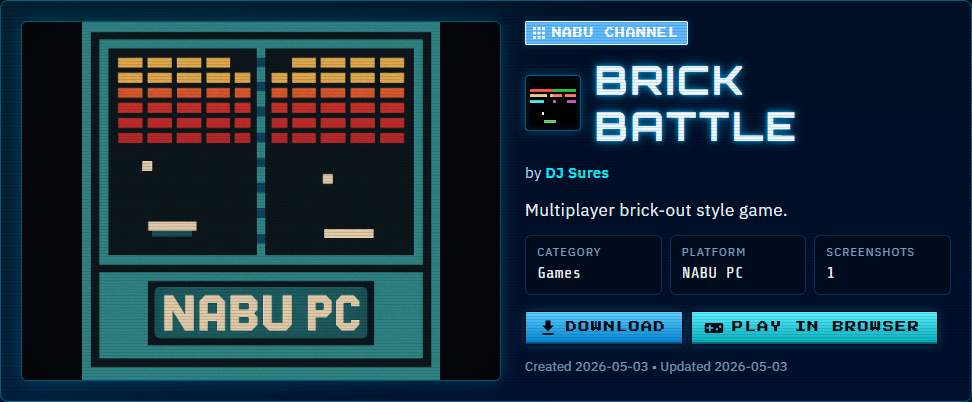
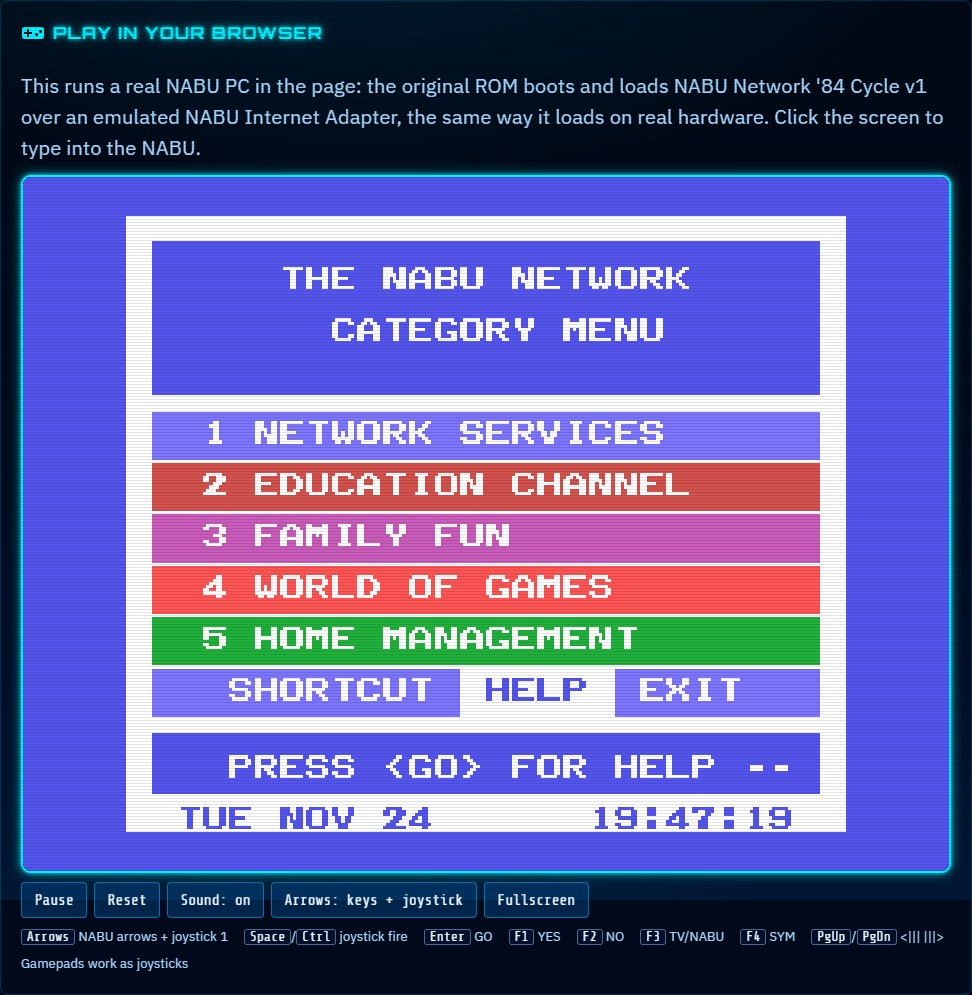
You can also play a whole broadcast cycle. The NABU Network ’83, ’84 and ’86 cycle channels load the original NABU Network menu, so you can browse the categories and launch the programs from that year just like a 1980s subscriber.
2. Power On the NABU
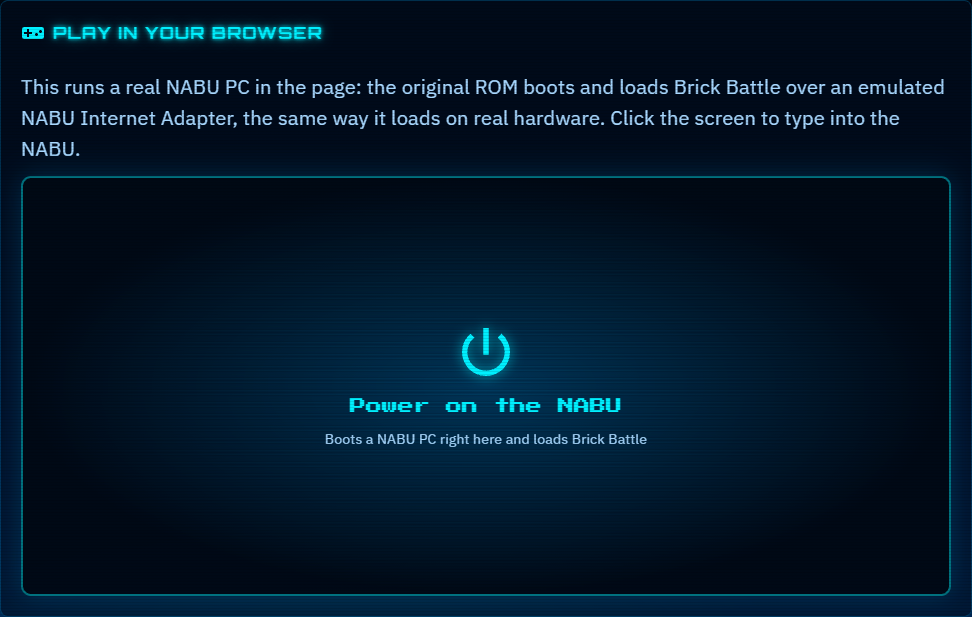
Press Play in browser, or scroll down to the Play in your browser section and click Power on the NABU. The emulator is only downloaded when you press it, so channel pages stay fast for everyone else.
The NABU boots and shows its usual loading screens while the program arrives over the emulated adapter. This usually takes a few seconds. Big programs and whole cycles take a little longer.
3. Play
Click the NABU screen so it receives your keyboard. Your PC keyboard types into the NABU, and the arrow keys and space bar also act as joystick 1, so games work without any extra setup. A USB or Bluetooth gamepad works as a joystick too.
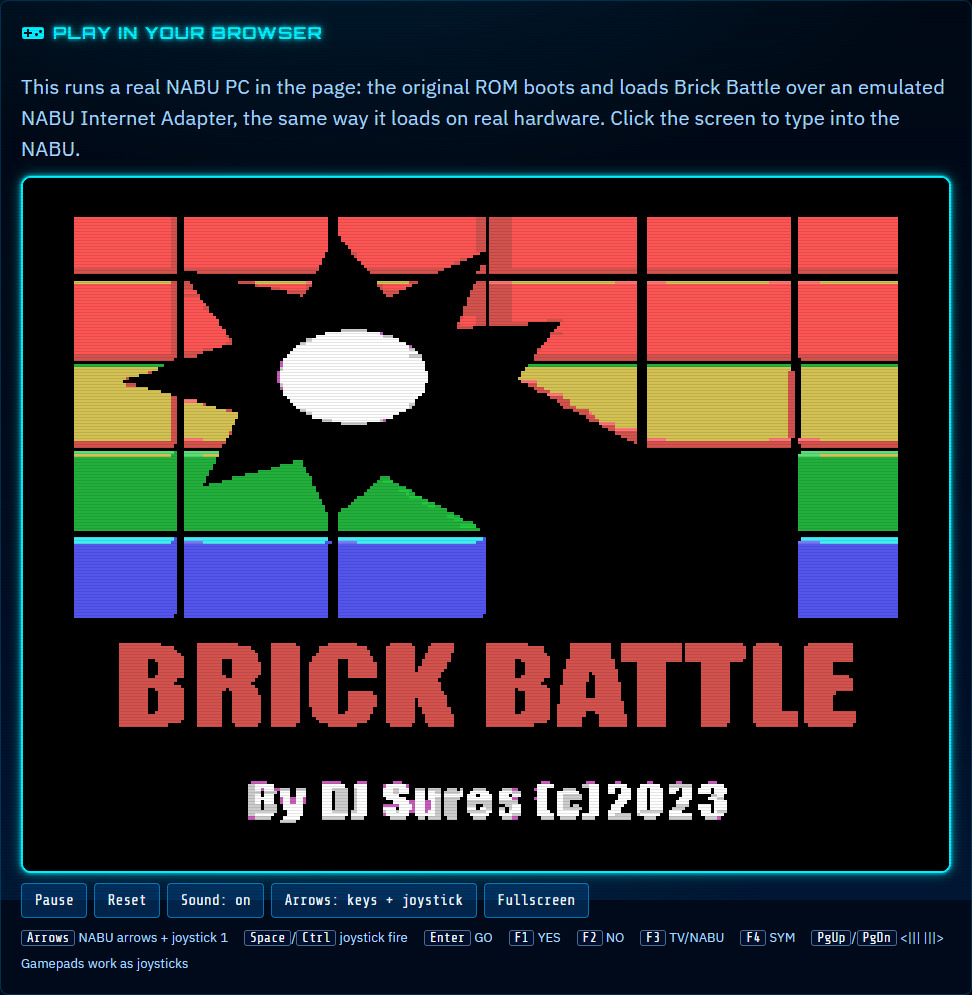
The NABU keyboard has a few keys a PC keyboard doesn’t. They are mapped like this:
| PC key | NABU key |
|---|---|
| Arrow keys | NABU arrow keys and joystick 1 |
| Space or Ctrl | Joystick fire |
| Enter | GO |
| Backspace | DEL |
| F1 | YES |
| F2 | NO |
| F3 | TV/NABU |
| F4 | SYM |
| Page Up / Page Down | <||| and |||> |
The buttons under the screen control the emulator:
- Pause freezes the NABU until you press Resume.
- Reset restarts the NABU and loads the program again.
- Sound turns the audio on or off.
- Arrows chooses what the arrow keys do: the NABU arrow keys and the joystick together, the arrow keys only, or the joystick only. Switch to keys only if a program reacts twice to one press.
- Fullscreen fills the screen with the NABU. Press Esc to leave.
Your sound and arrow settings are remembered for the next time you play.
Good to Know
- Saved files stay in your browser. Programs that save files with RetroNET keep them in this browser on this computer. Clearing your browser data erases them, and they don’t carry over to another browser or to the Internet Adapter.
- Multiplayer needs the Internet Adapter. Multiplayer games load in the browser, but they can’t join online sessions yet. To play against other people, use MAME or a real NABU with the NABU Internet Adapter.
- Use a keyboard or gamepad. The emulator runs in any modern browser (Chrome, Edge, Firefox or Safari), but it has no on-screen touch controls, so phones and tablets need a keyboard or gamepad connected.
- Cloud CP/M doesn’t work in the browser yet. The Cloud CP/M channels start, but they can’t reach their cloud drives, so they stop before the
A>prompt. For Cloud CP/M, use MAME or a real NABU with the Internet Adapter.
Want the Full Experience?
The browser is perfect for trying a program in seconds. For multiplayer, Cloud CP/M, loading your own homebrew from local files, or running every channel the way the network delivered it, set up the NABU Internet Adapter with MAME on your PC or with real NABU PC hardware.