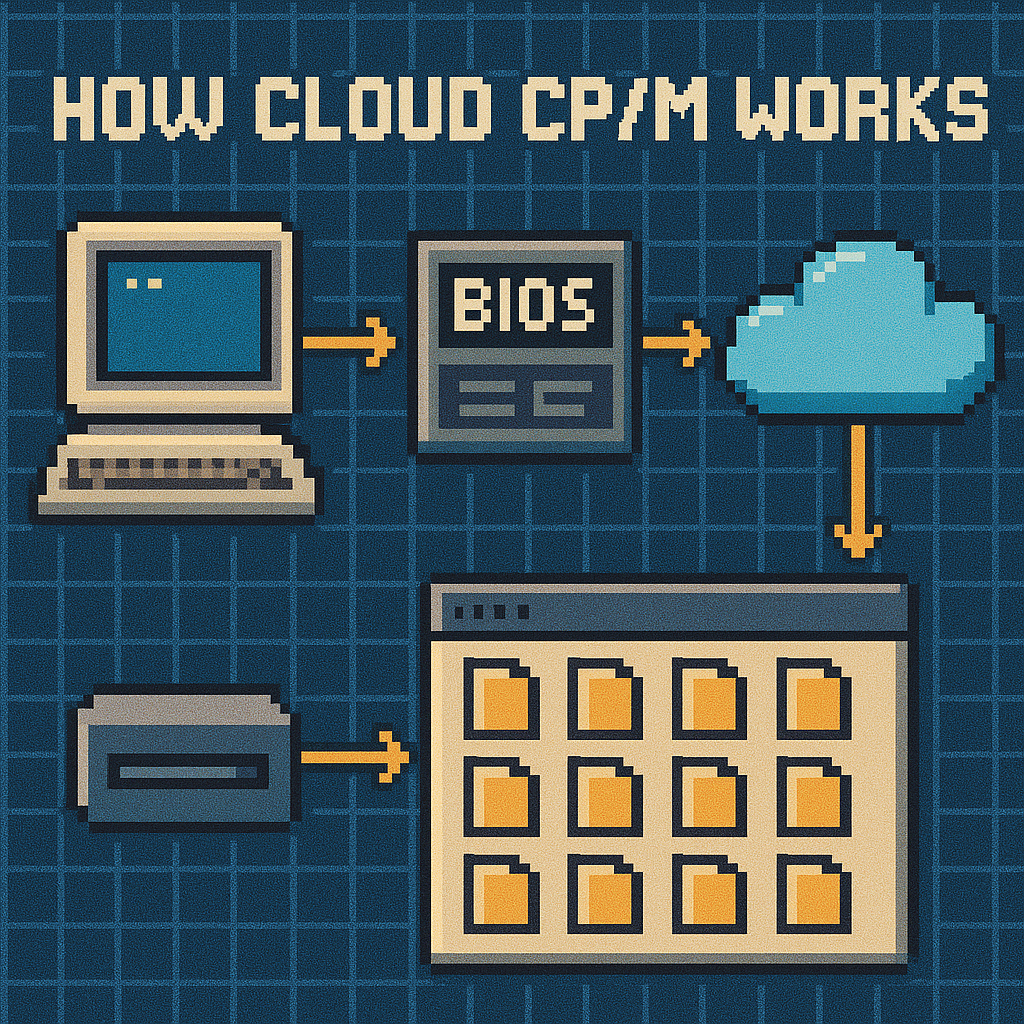
How Cloud CP/M Works
How Does Cloud CP/M Work?
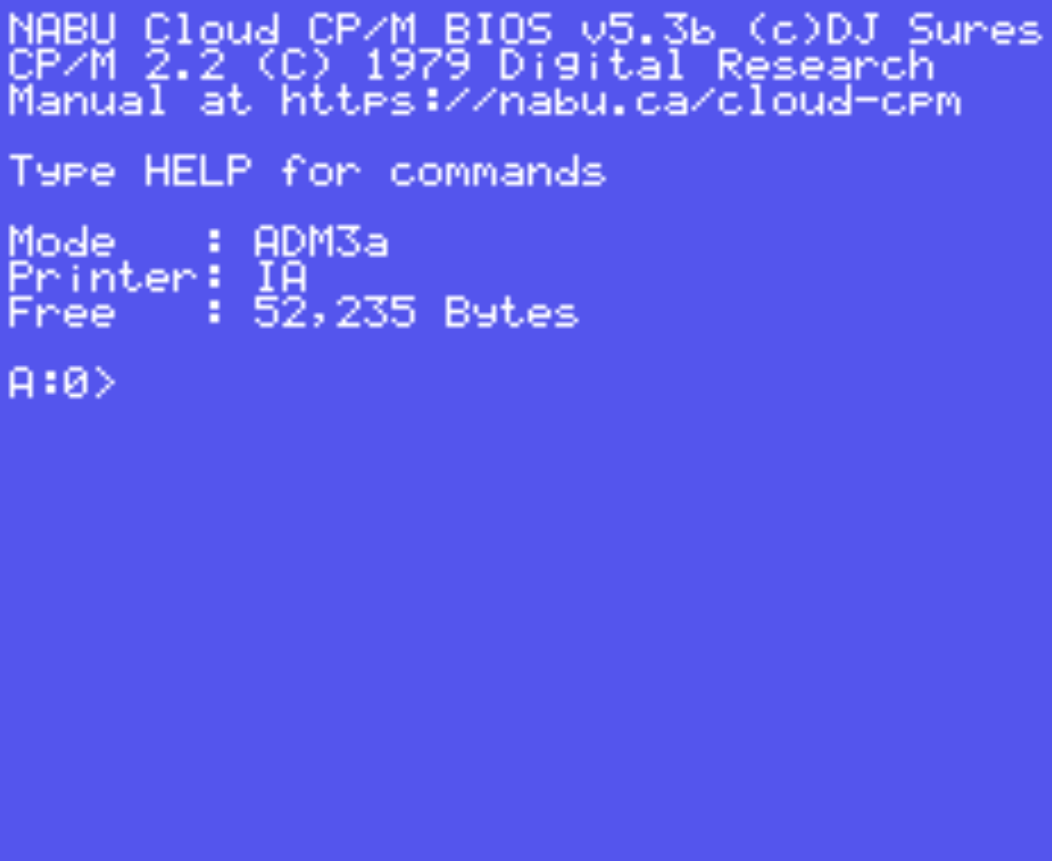
Digital Research created CP/M in 1979 as the first mainstream operating system before Microsoft DOS. The CPM operating system was compatible across 8086 and z80 computers because it used a custom BIOS per computer system. DJ Sures had created Cloud-Enabled-BIOS, Loader, and modified CP/M to work on the NABU PC without local storage. Here are the guts of NABU Cloud CP/M...
1. The Loader
The Cloud CP/M channel is a small loader program. It loads one combined file that holds the Cloud CP/M BIOS, the BDOS and the CCP into the top of the NABU’s RAM, then starts it.
The loader looks for that file in two places, in this order:
- Your Internet Adapter’s RetroNET Store folder. A copy here wins, which is handy for testing your own BIOS.
- The NABU cloud, at
http://cloud.nabu.ca/cpm/.
Each channel loads its own file: BIOS_CPM.BIN (Text), BIOS_CPMGUI.BIN (GUI), BIOS_CPM80.BIN (F18a Text) or BIOS_CPM80GUI.BIN (F18a GUI).
2. The BIOS
The BIOS (Basic Input Output System) is a middleware that connects the computer’s hardware to the operating system and application software. This makes it easier to port operating systems and software between different computers. The Cloud CP/M BIOS uses the NABU RetroNET Cloud to simulate local storage. This is done through the NABU-LIB RetroNET File System functions in DJ Sures’ GitHub.
No disks at all: A normal CP/M BIOS pretends to be a floppy or hard drive and reads sectors. Cloud CP/M doesn’t. Its BDOS hands each CP/M file request — open, make, read, write, search, rename, delete and close — straight to the Internet Adapter over the HCCA port. The adapter carries it out on a real file in a folder on your PC and sends the result back. There are no disk images, no sectors and no fixed drive sizes.
3. CP/M 2.2
The NABU Cloud CP/M is currently running 2.2. There are a few modifications to the CP/M system:
- Increased the stack size for both CCP and BDOS. I did this to use up a bit of RAM, otherwise being wasted above
0xFF0E. This is because the IM2 interrupt on Z80 requires the LSB bytes of the vector map table to be 00. That means the BIOS is using0xFF00–0xFF0Efor the interrupt table. This leaves quite a bit of space between0xFF0Eand0xFFFF. So, I placed the CPM and BIOS stack to give applications room to stretch. This will be useful for new homebrew ports, games, and utilities. - Added the current User Area to the command-line prompt.
- Removed the drive from the directory listing.
- Replaced the BDOS disk routines with direct file requests to the Internet Adapter.
Where Your Files Live
Every drive and user area is a folder inside your Internet Adapter’s RetroNET Store folder:
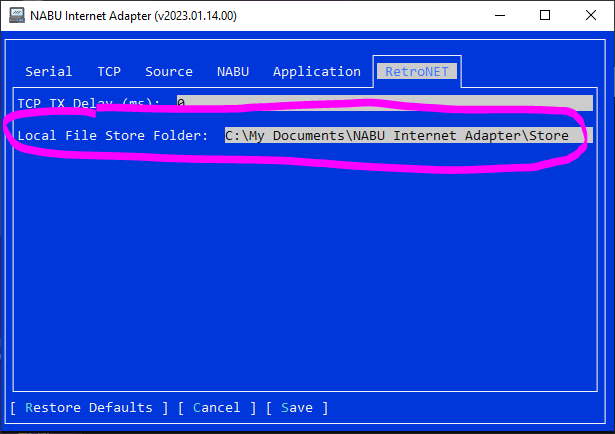
Store\CPM\<drive>\<user area>\FILENAME.EXTFor example, a file in A: user area 2 lives in Store\CPM\A\2\. The Store folder is Documents\NABU Internet Adapter\Store by default, and you can change it in the Internet Adapter settings on the RetroNET tab.
| In CP/M | Folder on your PC |
|---|---|
Drives A: to P: | CPM\A to CPM\P |
| User areas 0 to 9 | Folders 0 to 9 |
| User areas 10 to 15 | Folders A to F |
The Cloud Drives
When the Internet Adapter starts, it downloads the shared Cloud CP/M drives from nabu.ca as one archive, allYourCPM.zip, and unpacks it into the Store folder. It checks for a newer copy every time it starts, so new software appears automatically. The archive holds the software on A: and B:, plus drives such as N: with programs published by the community on this website.
When the cloud drives are updated, files that came from the cloud are replaced with the new copies. Your own files with different names are left alone, but the safest place for your work is a drive the cloud doesn’t use, such as C:.
See Your Files to copy files in and out, and to share your software with every NABU.
Cloud CP/M BIOS Features
- The BIOS also includes a 16-character keyboard buffer connected to the keyboard interrupt.
- The text screen is 80 columns by 24 rows. On a standard NABU you see 40 columns at a time; use the PAGE UP and PAGE DOWN keys to scroll the virtual 80-column screen. The F18a channels show all 80 columns at once. The flashing cursor is part of the BIOS.
- File activity flashes in the top-right corner of the screen:
RorWfor reading or writing, followed by the number of the open file.CCPappears while the command processor reloads,CFGwhile settings load, andGUIwhile Cloud GUI loads. - The NABU’s CHECK light flickers while reading and ALERT while writing. PAUSE lights up while the command processor reloads.
- The BIOS includes a built-in VT52 and ADM-3a terminal emulator for games and software. This is available at all times to any application. It is demonstrated using DJ’s included
TELNET.COMprogram that will use VT52 emulation when connecting to remote computers. Use theMODE.COMtool to switch emulation modes. - 16 drives,
A:toP:, each with 16 user areas. Because the files live on your PC, there is no fixed drive size: free space is your PC’s free disk space. HELP.COMwill display a summary of CPM commands.TUTORIAL.COMdisplays a graphic slideshow of Cloud CPM.DRIVES.COMshows what is on each drive and user area.A:user area 0 is always on the search path, so its commands, such asHELP,DRIVESandMODE, run from any drive and user area.RNCMD.COMallows copying files between the Internet Adapter, CPM, and User Areas.- Print to the Internet Adapter storage folder with the
LST:device. This behavior can be changed by using theMODE.COMcommand. - Cloud GUI graphical file manager.
- Greg’s 8251 TTY: serial output support. With a simple jumper, add serial output without any additional hardware. [more]
- Console input and output redirect to Telnet TCP server for remote TCP connections. [more]