Drives & User Areas
Cloud CP/M Drives & User Areas
Cloud CP/M has 16 drives, A: to P:, and every drive has 16 user areas, numbered 0 to 15. The cloud fills A:, B: and N: with software; the other drives are yours. The software on the cloud drives is listed further down this page, but first, here is how to move around them. CP/M 2.2 did not include a folder structure like we are used to on modern-day computers. Instead, all files were in the root folder of the drive. You can imagine how messy this eventually got as more extensive storage media, such as hard drives, became affordable. The CP/M response to organizing files into sections was User Areas.
User Areas are numbers between 0 and 15, with 0 being the default on startup.
Changing to a new user area is as simple as typing: USER [area number] e.g., USER 2.
Type DRIVES at any time to see what is on every drive and user area. Commands in A: user area 0, such as DRIVES, HELP and MODE, are always on the search path, so they run from any drive and user area.
Default A: User Area 0
When Cloud CP/M initially loads, you will be in the A: with User Area set to 0. Files on the A: User Area 0 include some utilities.
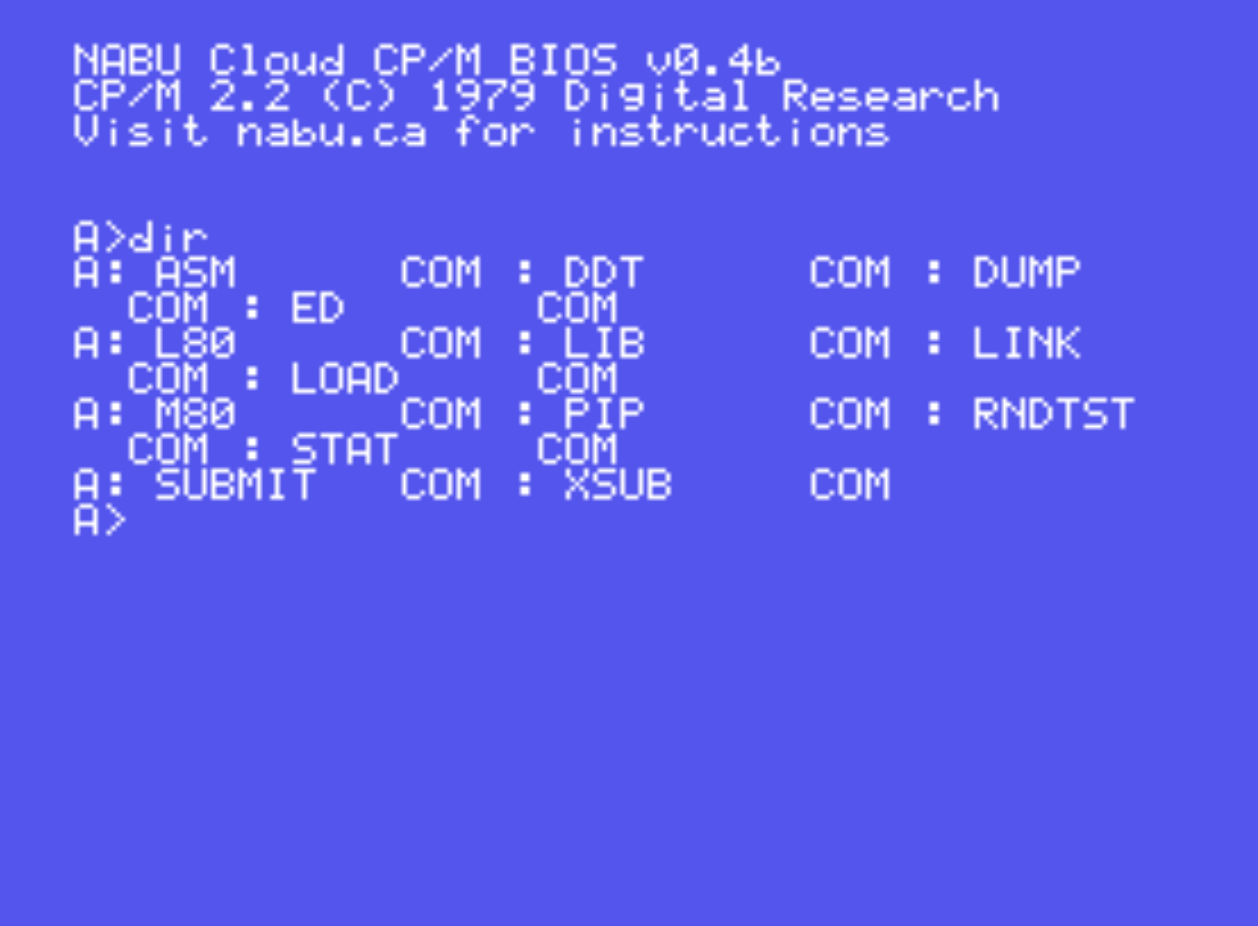
Exploring User Areas
Now type USER 1 on the A:. When you type DIR to list the files, you will see different files than you did on first startup.
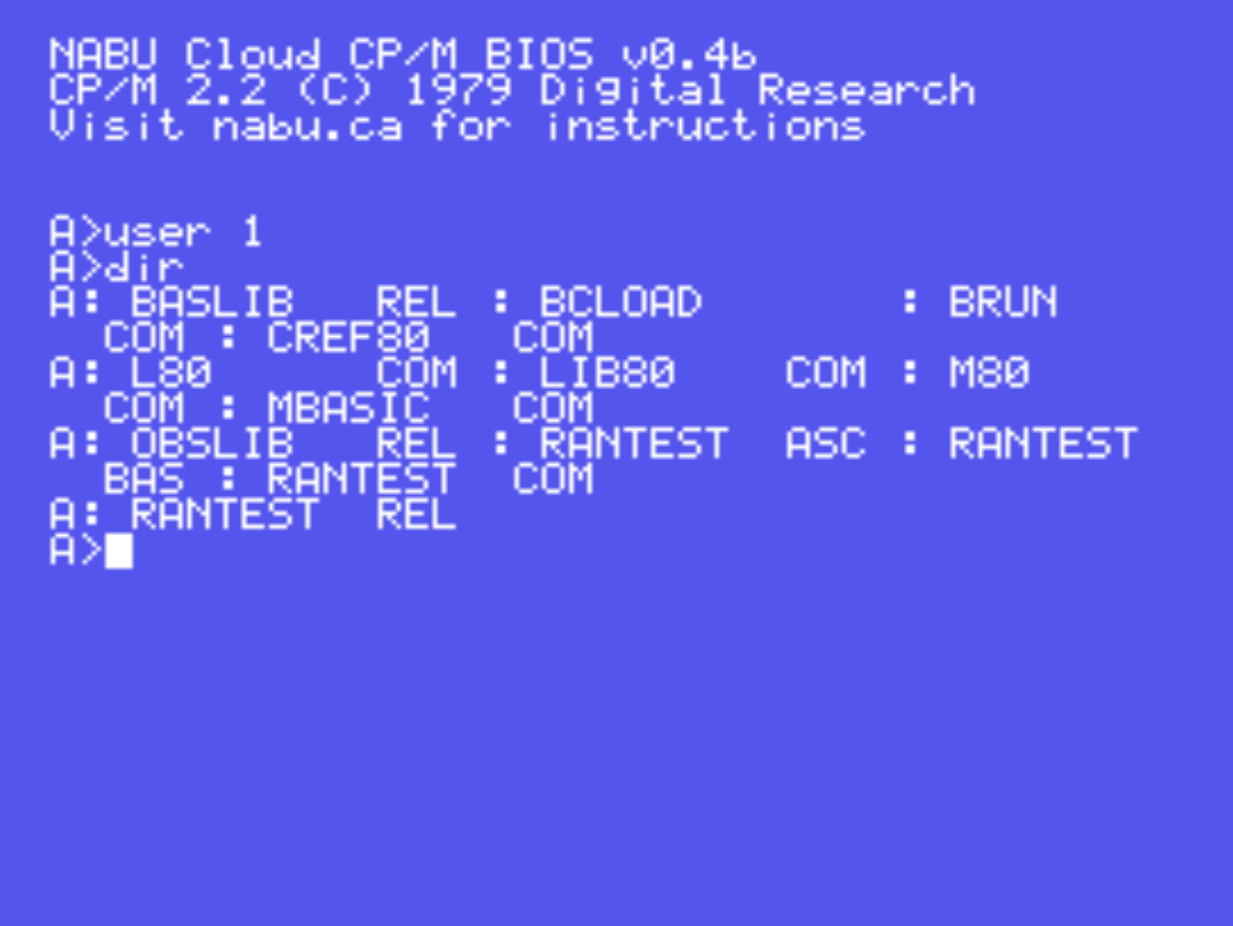
File Listing
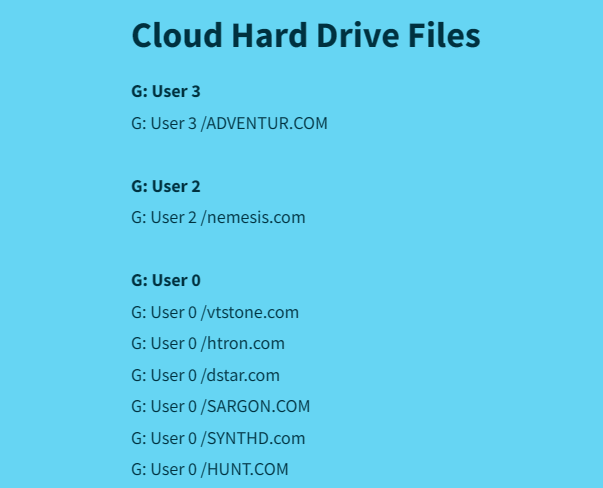
Lower on this page is a list of the current cloud drive images. If you were to want to play ZORK...
- type
A:to enter the A drive. - type
USER 3to enter the user area 3. - type
DIR *.COMto see all the programs on that drive and user area. - type
ZORK1to execute Zork and open some leaflets.
RetroNET Apps
The Homebrew RetroNET apps have been ported to Cloud CP/M, including chat and telnet.
- type
A:to enter the A drive. - type
USER 1to ensure you are on the user area 1. DIRwill give you a list of all RetroNET programs.- To run a program, simply type the name, such as
RETRONETwill load the chat.
Scroll down to see the list of user areas on the included Cloud CP/M A: Drive.
Basic Programs
If you wish to run a basic program, they are located on the A: in User Area 2.
- type
A:to enter the A drive. - type
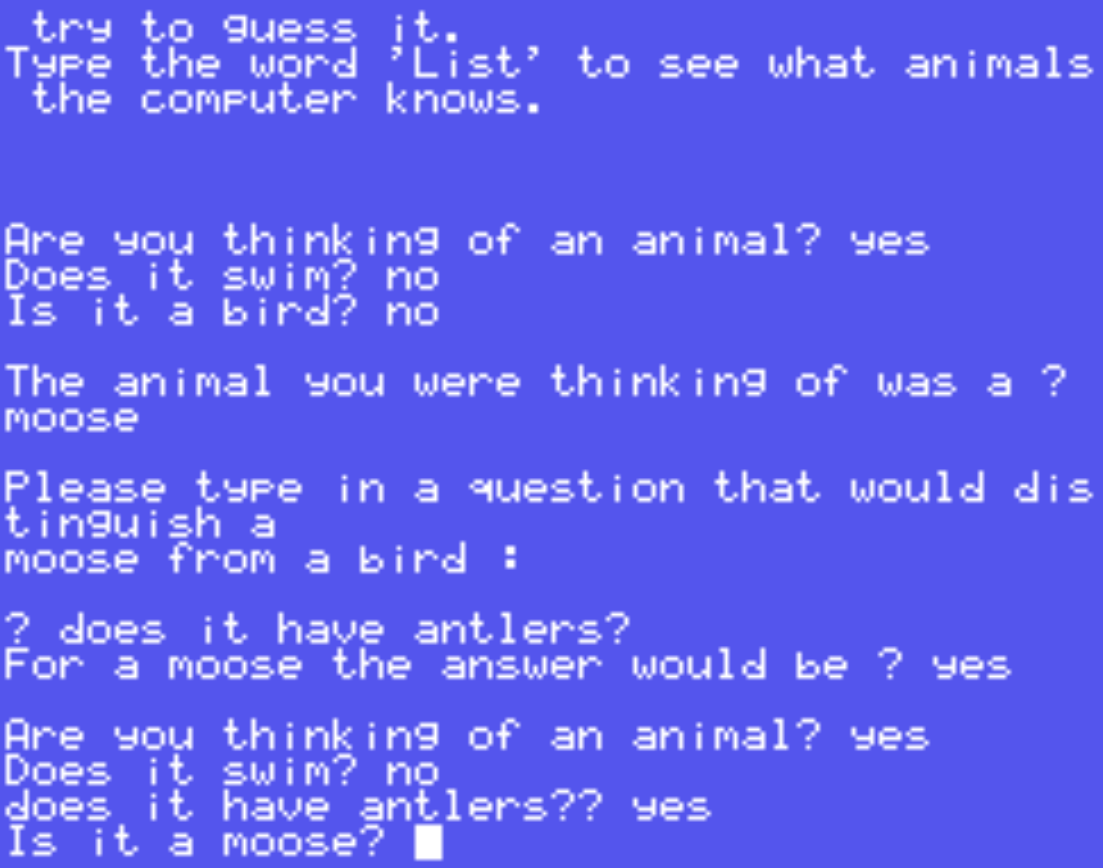
USER 2to ensure you are on the user area 2. DIR *.BASwill give you a list of all basic programs.- To run a basic program, such as my favorite (animals), type
MBASIC ANIMALS.BAS.
MSX Games
On the B: in User Area 0 and 1 contain the MSXROM BIOS and ROM files for the MSX Computer. Due to hardware similarities, Luis has ported the MSX BIOS to the NABU which runs under Cloud CP/M.
- Type
B: - Type
USER 0-or-USER 1 DIRto get a list of games.- pick a game and type either
MSXROM game.rom 2orMSXROM game.rom
Some games require the 2 for IM2 mode. If they have an IM2 extension, the program will add the 2 automatically.
Huge special thanks to Luis F.A. for the amazing work with porting the MSX BIOS to Cloud CP/M so we can have more games for the Nabu!
A: Cloud Hard Drive
The lists below are a snapshot. For the current programs on each drive and user area, with descriptions and screenshots, browse Cloud CP/M Software.
You can list files with the * wildcard, such as DIR *.COM to find all executables. CPM uses the .COM extension for executable files.
What’s on each drive: Type DRIVES to list the drives and user areas and what is on them. It works from anywhere, because A: user area 0 is always on the search path.
Notes:
- The cloud drives are refreshed from nabu.ca whenever they are updated, and files that came from the cloud are replaced with the new copies. Keep your own work on a drive the cloud doesn’t use, such as
C:. - Every drive is a folder on your PC, so you can read and write files on any drive, and there is no fixed drive size. See where your files live.
User Area 0
The first default user area contains a few utilities included with CPM 2.2 installation. Some notable mentions are...
HELP.COM(Cloud CP/M Tutorial)MODE.COM(Change terminal emulation mode)POWER.COM(Power utility)SX.COM(UNIX-like Shell) (MANUAL)XDIR.COM(NABU 1100 Directory Lister)NSWEEP.COM(file manager)
User Area 1
The RetroNET applications and homebrew NABU Channels have been ported to Cloud CP/M using z88dk and NABULIB.
BADAPPLE.COM— The Bad Apple demoCPMCURS.COM— Test of reading the Cloud CPM BIOS cursor from an applicationDOOM.COM— The NABU DOOM demoDUMPRAM.COM— Dumps the NABU ram to a file on your PC’s storage folderGAME1.COM— The first prototype of GameManYeah! in textmodeGAME5.COM— The first graphic mode prototype of GameManYeah!HTTPTEST.COM— Test your NABU talking to the internet and saving files on the PCMNDLBRT.COM— The mandelbrot on NABUNABUMENU.COM— The original menu from the NABU Network as an experiment (doesn’t work)RETRONET.COM— The RetroNET Chat in Cloud CP/M!SLIDESHO.COM— A graphic slideshow of picturesTELNET.COM— The Cloud CP/M Telnet Client with VT52 emulationTESTC51.COM— Test of a custom 51 column textmodeTESTC64.COM— Test of a custom 64 column textmodeTESTC80.COM— Test of a custom 80 column textmodeTESTC84.COM— Test of a custom 84 column textmodeVTEST52.COM— Test of the Cloud CP/M BIOS’ built-in V52 emulation decoder
User Area 2
You will find many .BAS files here, including the MBASIC.COM executable. If you want to run a basic program, go to this user area, and type MBASIC. For example, MBASIC ANIMALS.BAS. If loading from within MBASIC, you can use the LOAD "ANIMALS.BAS" command, but remember the filename is case sensitive, so turn your caps lock on when working in basic. [click here for MBASIC manual]
You may also load MBASIC MENU.BAS to load the basic game menu.
User Area 3
Games games games and more games! There are a number of adventure games and action games on this drive in various user areas. They have not all been tested, as I am finding out what works and doesn’t. The games include the Zork adventures, Hitchhiker’s Guide (good demonstration of the BIOS VT52 emulation, and more).
User Area 4
Microsoft Fortran-80 v3.43
User Area 5
Microsoft COBOL v4.01
User Area 6
This area has several word processors and text editors.
User Area 7
- Plan 80 spreadsheet software [manual]
- Super Calc
User Area 8
Turbo Pascal
User Area 9
BBC Basic [manual] (type *BYE to exit. Also note that BBC Basic requires UPPER CASE)
B: Cloud Hard Drive
User Areas 1 & 2
MSX Games can run on the NABU thanks to Luis F.A., who has ported the MSX BIOS to run under the NABU Cloud CP/M. Some games require IM2 mode, which you specify a 2 on the command line. Here is how you run an MSX game, type one of the two commands... MSXROM game.rom or MSXROM game.rom 2
N: Community Software
The N: drive holds software published by the community on this website, such as arcade games, text adventures and BBC BASIC programs. Browse it, with descriptions and screenshots, in Cloud CP/M Software. You can publish your own too.
C: And Your Other Drives
Drives the cloud doesn’t use, such as C:, start empty and are yours to use in any user area. Nothing from the cloud is ever written to them. To copy files onto them from your PC, see Your Files.