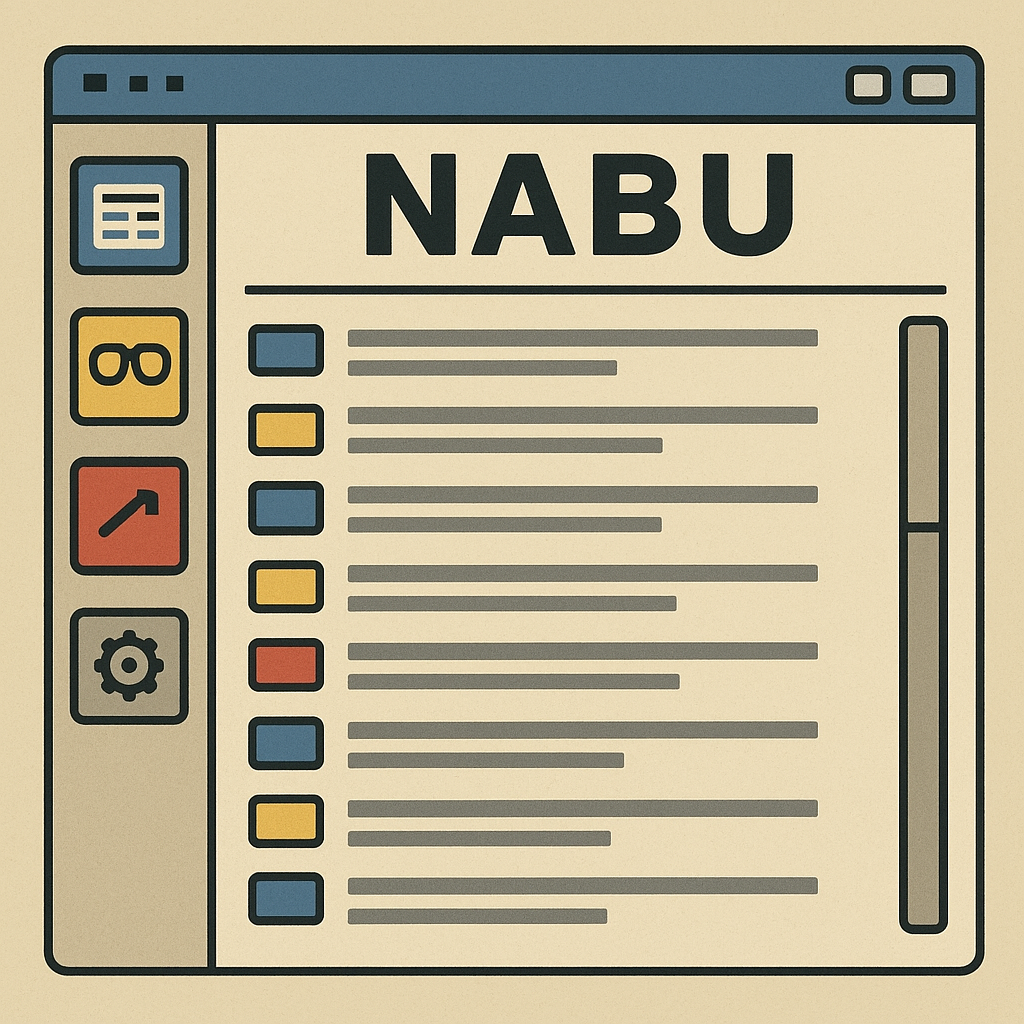
NABU News Aggregator
Group: Utilities • Author: brandontaylor0918
Created 2026-11-14 • Updated 2026-11-14GitHubA news aggregator showing 20 of the latest headlines and stories from The Guardian.
You can find NABU News Aggregator in the Utilities category. To run this, look in the Internet Adapter or Headless menu on the NABU/MAME and navigate to the Utilities channel category and select NABU News Aggregator.
NABU NEWS
A news aggregator showing 20 of the latest headlines and stories from The Guardian.
PREREQUISITES
- Python (for the NABU bridge)
- DJ Sures' Internet Adapter (available on this website)
- A real, bare metal NABU PC connected to your host computer via a RS422 cable, or a NABU emulator (available on this website)
- A free developer key from https://open-platform.theguardian.com
SETTING UP THE BRIDGE
- Install Python on your computer (some Linux distributions will already have Python; type
python --versionin a terminal to check). - Type
pip install requests trafilatura googlenewsdecoderto pull in the dependencies for the bridge. (WARNING! Because of some stupid new requirements, today's Linux distributions do not allow runningpip installexcept in a virtualenv environment. You'll need to install thevenvpackage according to your Linux distribution. Then type:python3 -m venv/path/to/venv /path/to/venv/bin/activateand then runpip install requests trafilatura googlenewsdecoderas above.) - Register for a free developer key from https://open-platform.theguardian.com and set the
GUARDIAN_API_KEYenvironment variable as follows:
- Windows:
set GUARDIAN_API_KEY=89ABCDEF-0123-ABCD-4567-456789ABCDEF - PowerShell:
$env:GUARDIAN_API_KEY="89ABCDEF-0123-ABCD-4567-456789ABCDEF" - macOS/Linux:
export GUARDIAN_API_KEY=89ABCDEF-0123-ABCD-4567-456789ABCDEF (This is just an example of what your key will look like in your email inbox.)
- Type
cd/path/to/bridge.py and runpython bridge.pyon Windows, orpython3 bridge.pyon macOS or Linux.
STARTING THE PROGRAM
- Install and run DJ Sures' Internet Adapter and click "Start RS422" (for a real NABU) or "Start TCP" (for an emulator).
- Power up your NABU or run your emulator, and launch Cloud CP/M or Cloud GUI.
- In Cloud CP/M or Cloud GUI, navigate to drive N, user area 3, and launch
NABUNEWS.COM.
USING THE PROGRAM
The program recognizes the following keys:
| This key | Runs this command |
|---|---|
| GO (on a real NABU) or ENTER (on a PC or Mac running an emulator) | Pick a story by number |
| N or SPACE | Next page on current screen |
| P | Previous page on current screen |
| T | First (top) page on current screen |
| B | While viewing a story, go back to the headlines |
| R | Reloads the headlines |
| K | Shows a key's code (to be removed in future) |
| H | Displays help text |
| Q | Quits and returns to Cloud CP/M or Cloud GUI |
When you press GO or ENTER to bring up the story number prompt:
- Use the number keys to select a story from 1 to 20.
- DELETE (on a real NABU) or BACKSPACE (on a PC or Mac running an emulator) erases the previous character.
- ESC returns to the headline list.
- GO (on a real NABU) or ENTER (on a PC or Mac running an emulator) opens the selected story.
SO WHO MADE THIS?
NABU News is brought to you by:
- Myself -- Brandon Taylor -- The original idea
- Claude -- The AI which did the heavy lifting
- Mark (Intangybles) and productiondave for some much-needed ideas on how to improve both the program and the bridge.
- GTAMP for additional help with converting the Cloud CP/M version into a homebrew version.
SPECIAL THANKS
Obviously, I have to thank the original pioneer of the NABU Network, Mr. Leo Binkowski, as well as the man who has kept the NABU dream alive after all these years, DJ Sures. Thanks for giving us one hell of a ride thus far!
Screenshots